IPTV Smarters Pro can make compatible streaming content easier to organise and watch. But what if your login fails, your playlist appears empty, or your video keeps buffering? Before changing apps or reinstalling anything, it helps to understand how the player works, what it actually provides, and which settings you should check first.
This guide explains IPTV Smarters Pro in practical terms, including its features, setup methods, device compatibility, common errors, safety considerations, and alternatives. Whether you are new to IPTV players or troubleshooting an existing setup, you will find the essential information in one place.
Quick Answer: What Is IPTV Smarters Pro?
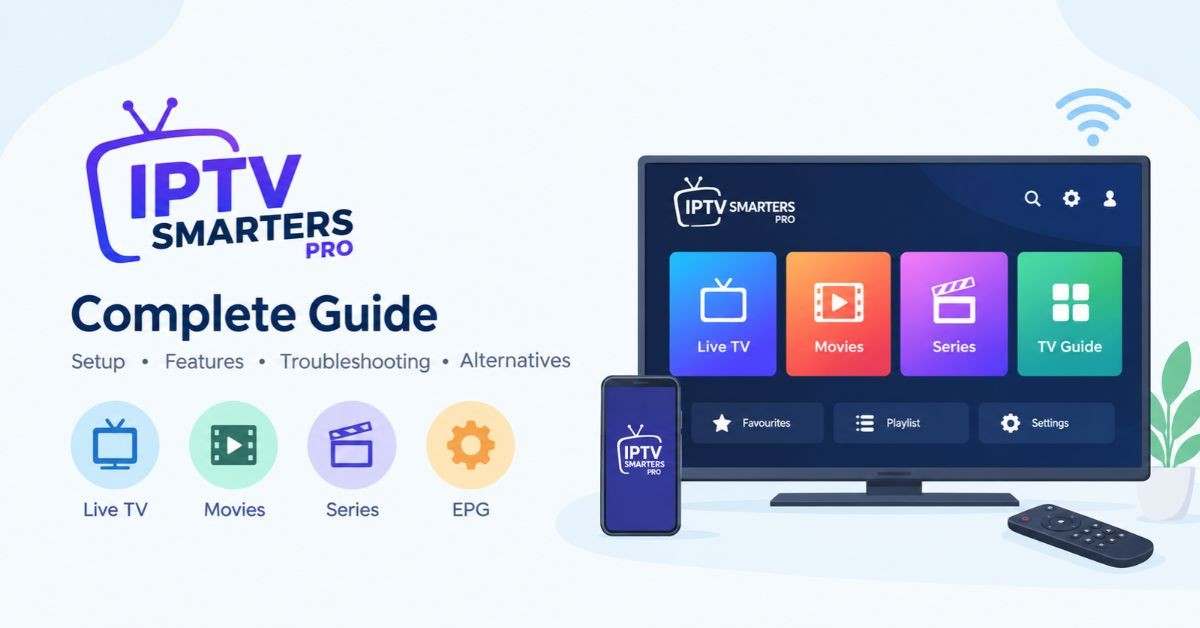
IPTV Smarters Pro is a name commonly used for media-player applications that organise and play compatible streaming content from a user’s own playlist or authorised service. Depending on the exact app edition, it may support live TV streams, video-on-demand content, TV series, electronic programme guides (EPGs), and multiple playlists.
The most important point: the player itself does not automatically provide television channels, movies, series, or an IPTV subscription. You generally need a compatible playlist or login from a content provider.
App names, developers, supported devices, features, and download methods can differ between similarly named products. Always verify the exact edition before installing it.
How Does IPTV Smarters Pro Work?
IPTV stands for Internet Protocol Television. It refers to television content delivered over internet protocol networks rather than exclusively through traditional broadcast or cable systems.
An IPTV player acts as the interface between compatible content sources and your viewing device. It can organise available streams into categories and make them easier to browse.
The basic process is straightforward:
- Install a compatible player from a trusted source.
- Obtain playlist or login details from a legitimate content provider.
- Add those details using a supported connection method.
- Allow the application to load available channels, programme information, or on-demand content.
- Select an item to begin playback.
The player, content source, and internet connection each have a different role. If playback fails, identifying which part is responsible is the first step toward resolving the problem.
IPTV Smarters Pro Features: What Can You Do With It?
Available features depend on the specific application, platform, version, and content source. Common capabilities in compatible Smarters-style players include the following.
Live TV, Movies and TV Series
Some editions separate compatible content into sections such as Live TV, Movies, and Series. These sections help users navigate the content made available through their configured source.
The categories do not mean that the app includes a built-in channel package or movie library.
Electronic Program Guide (EPG)
An Electronic Program Guide displays programme schedules and related information when compatible guide data is available.
If the guide is blank or incomplete, check whether your provider supplies EPG data and whether the application has refreshed it successfully.
Multiple Playlists and Favourites
Supported versions may allow users to add more than one playlist and save frequently watched items as favourites.
These features can simplify navigation, particularly when a content source contains a large number of channels or categories.
Playback Controls and Media Player Options
Depending on the edition, users may have access to playback controls, subtitle options, audio-track selection, or an external media player.
Not every feature is available on every device. Check the documentation for your particular version before relying on a specific capability.
Parental Controls and Personalisation
Some versions offer parental controls, interface customisation, or other viewing preferences. Their availability and configuration may differ between platforms.
Feature tip: Before choosing an app, confirm the features you actually need rather than assuming that every application using the Smarters name offers the same functionality.
Is IPTV Smarters Pro Free? Pricing and Subscriptions Explained
The answer depends on the specific app edition and the features you want to use.
Some versions may be available to install for free, while others may offer paid upgrades, in-app purchases, or additional functionality. Prices and payment terms can change, so consult the relevant official website or app-store listing for current details.
It is also important to distinguish between three separate things:
- The player app: the software used to access and play compatible media.
- The content subscription: a separate service that may provide authorised streams or channels.
- Premium app features: optional functions that may require a separate payment.
Paying for a player upgrade does not automatically mean you have purchased access to television channels or on-demand content. Check exactly what a payment includes before completing a transaction.
IPTV Smarters Pro Compatibility and Availability
Compatibility is one of the most important things to verify before installing an application. Similar product names do not guarantee that the software is identical across devices.
Supported Devices and Platforms
The official Smarters Pro website lists platform options that include Android phones, Android TV, iOS, Apple TV, Windows, macOS, Samsung Smart TVs, and a web player. It also identifies some desktop versions as beta releases and lists LG support as forthcoming.
These listings are subject to change. Confirm the current availability for your exact device and region before downloading anything.
Regional Availability and Restrictions
An app may not be available in every country or app store. Distribution can vary because of platform policies, developer decisions, and regional requirements.
If you cannot find the application, check its official website and the relevant app store. Avoid assuming that a third-party download is the correct version simply because it uses a familiar name or logo.
What to Check Before Installing
Before downloading, verify:
- The exact application name and developer.
- Whether the version supports your device and operating system.
- Whether the download comes from an official or trusted source.
- Whether the app requires a subscription, activation, or separate content credentials.
- Whether the stated features are available on your platform.
These checks help prevent compatibility problems and reduce the risk of installing an imitation application.
How to Install IPTV Smarters Pro on Different Devices
- Android Phone/Tablet: Download from the Google Play Store.
- iPhone/iPad: Search for a compatible app on the Apple App Store.
- Amazon Fire TV Stick: Check the Amazon Appstore.
- Android TV/TV Box: Search in the Google Play Store and install the compatible app.
- Samsung Smart TV: Search in the Samsung TV Apps store.
- LG Smart TV: Check the LG Content Store for availability.
- Windows PC: Check the official Smarters Pro website for a Windows version.
- MacBook/iMac: Check the official website or Mac App Store for a compatible version.
- Apple TV: Search the Apple TV App Store for a tvOS-compatible app.
- Web Browser: Visit the official website and check whether a web player is available.
Basic Installation Steps
- Open the official app store or developer website.
- Find a compatible version and download it.
- Install and open the app.
- Enter your authorized IPTV provider’s login details or playlist.
Note: Availability varies by device and region. IPTV Smarters Pro is a player; it does not automatically provide channels or a subscription.
How to Set Up IPTV Smarters Pro Step by Step
The precise setup process varies by application edition and device. The following general steps apply to compatible players that accept a playlist or service login.
Before You Begin: What You Need
Prepare the following:
- A compatible device and supported application version.
- A stable internet connection.
- A playlist or account from a legitimate content source.
- The correct connection details required by that source.
- Any additional information required by your specific app.
Never share private credentials in public posts or screenshots.
Step 1: Install the Correct Application
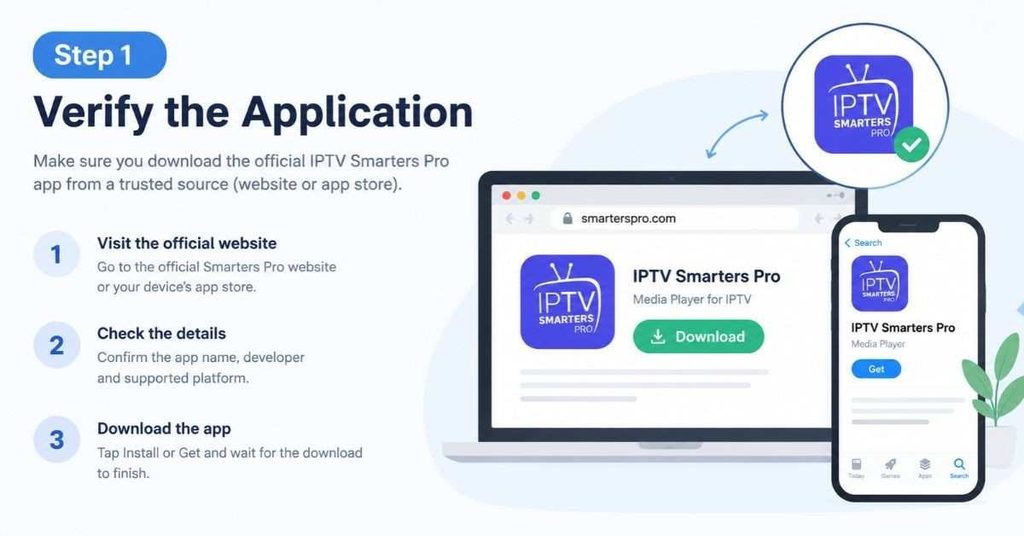
Open the official website or your device’s trusted app store. Verify the application name and developer before installing it.
For desktop software, check the download source and operating-system requirements. Avoid unofficial installers that request unnecessary permissions or bundle unfamiliar software.
Step 2: Open the App and Choose a Connection Method
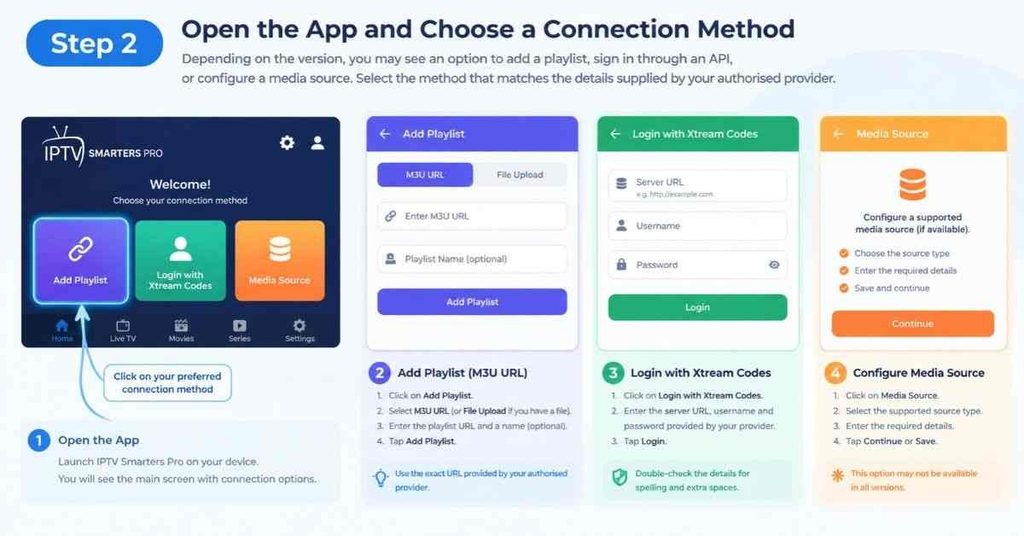
Depending on the version, you may see an option to add a playlist, sign in through an API, or configure a media source.
Select the method that matches the details supplied by your authorised provider. The available options may differ between editions.
Step 3: Enter Your Provider Details
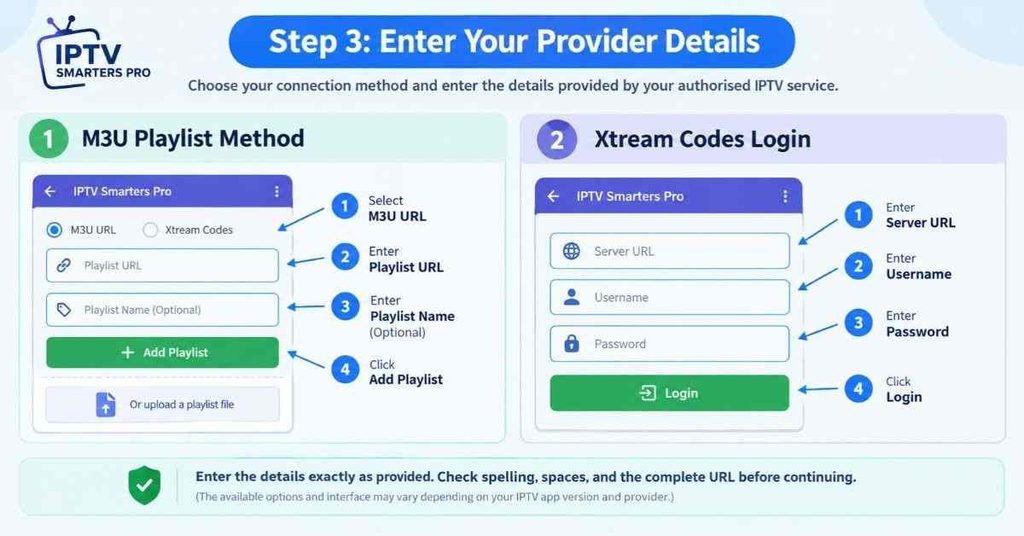
Follow the application’s instructions carefully.
For an API-based login, you may need a server address, username, and password. For an M3U playlist, you may need a playlist URL or a local playlist file.
Enter the details exactly as supplied. Small errors in a server address, password, or URL can prevent the application from connecting.
Step 4: Load and Check Your Content
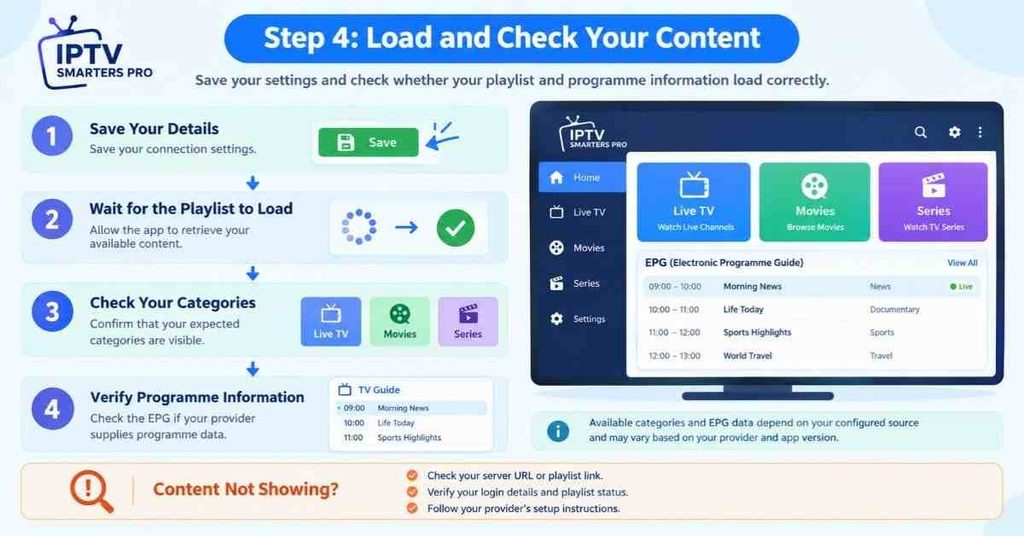
After saving the configuration, allow the app to load the playlist and any available programme information.
Check whether the expected categories appear. If they do not, review the connection details, playlist status, and provider instructions before reinstalling the app.
Step 5: Test Playback
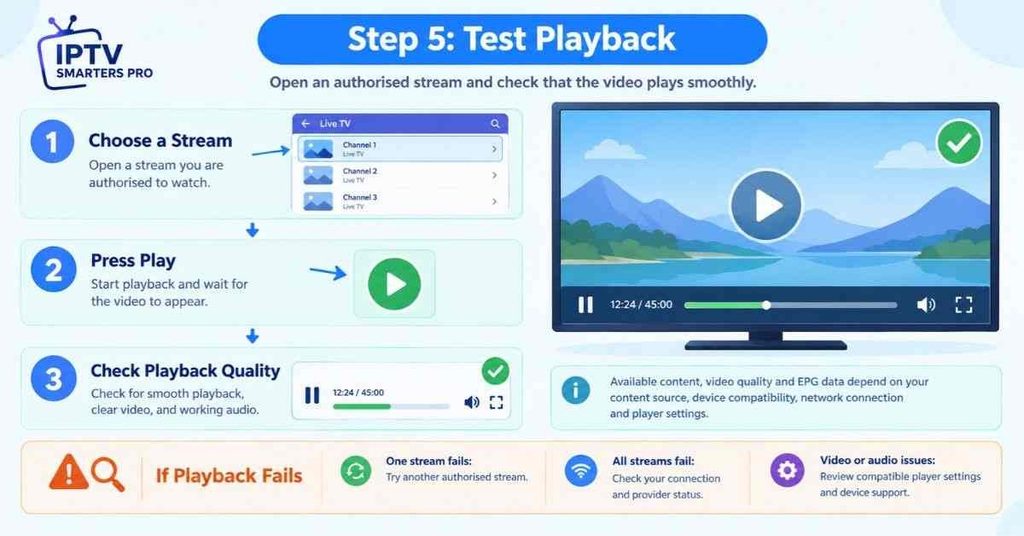
Open a permitted stream and check whether it plays consistently.
If the playlist loads but a particular stream does not work, the problem may involve that stream, the content source, device compatibility, or playback settings rather than the initial installation.
Looking for IPTV Options in the USA?
Compare features, device compatibility, pricing, and legal streaming options to find a service that fits your needs.
Explore IPTV Options in the USA
Xtream Codes vs. M3U: Which Login Method Should You Choose?
Xtream Codes-style login and M3U playlists are two common connection methods used by compatible IPTV players. They are not interchangeable in every application.
| Feature | M3U Playlist | Xtream Codes-Style Login |
| Typical setup | Playlist URL or file | Server address, username and password |
| Main purpose | Identifies available media streams | Connects to a compatible provider’s service |
| Content organisation | Depends on playlist information | May load categories and metadata automatically |
| Programme guide | Requires compatible guide data when needed | Depends on the provider and application |
| Common limitation | Invalid links or incomplete playlist data | Incorrect credentials or unsupported API |
| Best choice | When your provider supplies an M3U playlist | When your provider supplies compatible API credentials |
How M3U Playlists Work
An M3U playlist is a file or URL that contains references to media streams and may include additional information, such as channel names. A compatible application reads the playlist and displays the available entries.
The advantage is flexibility: a supported playlist can make it easier to organise media from a compatible source. However, a playlist may contain broken links, incomplete metadata, or entries that are no longer available. Some playlists also require separate programme-guide information to provide a useful EPG.
How Xtream Codes-Style Login Works
A compatible API-based connection typically requires a server address, username, and password. The player uses the supplied information to communicate with the provider’s system and retrieve the information that the service makes available.
This method can offer convenient organisation when the provider and application support it. However, the connection may fail if the credentials have expired, the server address is incorrect, or the provider’s API is unavailable.
Which should you choose? Use the connection method explicitly supported by your application and authorised content provider. Avoid sharing your credentials with unofficial troubleshooting services, and never assume that an application supports every playlist format.
M3U Playlist: Benefits and Limitations
An M3U playlist is a file or URL that identifies media streams and may include channel information.
Potential advantage: it offers a straightforward way to load a compatible list of streams.
Limitation: playlist formatting, link validity, and programme-guide data can affect the result. Some playlists may not include the information needed for a complete TV guide.
How to Choose the Right Method
Use the method explicitly supported by your application and provided by your content source. If you are unsure which one to use, ask the provider for its documented setup instructions.
Do not convert, share, or publish private login information simply to troubleshoot a connection.
IPTV Smarters Pro Not Working? Common Problems and Fixes
When an application stops working, changing several settings at once can make the underlying cause harder to identify. Start with simple checks and change one thing at a time.
Login Failed or Invalid Credentials
Possible causes include a typing error, an incorrect server address, expired access, or an unavailable provider service.
Try these steps:
- Re-enter the credentials carefully.
- Check for accidental spaces or missing characters.
- Confirm that the account is still active.
- Verify the server address with the provider.
- Contact the provider if the details appear correct but the login still fails.
Avoid sharing your password with unofficial support accounts.
Channels or Playlists Not Loading
If the app opens but no content appears, check the internet connection and reload the playlist if the application supports that option.
Also verify that the playlist link is still valid and that the provider has not changed its configuration. If the source itself is unavailable, reinstalling the player may not solve the issue.
App Crashing, Freezing or Closing Unexpectedly
First, restart the application and device. Then check for updates from the trusted distribution source.
If the problem continues, check the device’s available storage and the application’s compatibility requirements. Reinstall only after confirming that you can restore your configuration and that any necessary login details are safely available.
Black Screen or Playback Errors
A black screen can result from an unavailable stream, an unsupported format, a playback issue, or a problem with the content source.
Test another authorised stream if one is available. If only one item fails, report that item to the provider. If every stream fails, investigate the connection, application version, and service status.
How to Fix Buffering and Improve IPTV Playback
Buffering occurs when playback cannot receive or process media data quickly enough to continue smoothly. The cause may be the network, device, stream, or provider.
Check Your Internet Connection
Test whether other websites or streaming services are also slow. If several services have problems, investigate the internet connection before changing the player.
Reduce Wi-Fi Interference
Move closer to the router or test a wired connection if your device supports it. Other devices using the same network may also compete for available bandwidth.
A faster internet package alone will not resolve every buffering problem, especially when the source server is overloaded or a stream is faulty.
Review Video Quality and Player Settings
If the source offers different stream qualities, test a lower resolution to see whether playback becomes more stable.
If your version supports an alternative player, you can test it to determine whether the issue is specific to the built-in playback engine. Change one setting at a time so that you can identify what helped.
Check the Provider or Server
If your internet connection works normally but one or more streams repeatedly buffer, the issue may be with the content source or its server.
Contact the provider with the affected stream, the approximate time of the problem, your device type, and the troubleshooting steps already attempted. Do not send passwords or private playlist URLs unless you are communicating through a verified, appropriate support channel.
Is IPTV Smarters Pro Safe? Privacy and Security Tips
Safety depends on the application you install, the permissions it requests, the content source you connect to, and how you handle your login information.
Download From Trusted Sources
Start with the official product website or the relevant app store. Check the developer identity and application details, particularly when multiple apps have similar names.
Be cautious of websites that promise free premium channels, request unusual payments, or direct you to unfamiliar installers.
Protect Your Login Details
Treat playlist URLs, usernames, passwords, and server addresses as private credentials when they provide access to an account.
Avoid posting them in forums, screenshots, or public troubleshooting requests. Use unique passwords where possible and review the privacy policy of the specific application you install.
Review Permissions and Privacy Information
Check the permissions requested by the app and whether they make sense for its functionality. Review its privacy information to understand what data the developer says it collects or shares.
Do not assume that two applications with similar names have the same developer, security practices, or privacy policy.
Is IPTV Smarters Pro Legal? What Users Should Know
The legal position depends on the content being accessed, the rights held by the provider, and the applicable laws in the user’s location.
A media player and a content service are different things. The player is software; the content source supplies the streams or media that the software plays.
The Difference Between a Player and a Content Provider
Using a player does not, by itself, establish whether a particular stream is authorised. A playlist can point to content that is licensed, freely available, privately owned, or unauthorised.
The important question is whether the content source has the necessary rights to distribute the material.
Check Licensing and Local Rules
Before using a service, review its terms, licensing information, and the rules that apply where you live. Be cautious of providers making unrealistic claims about access to large amounts of premium content without clear rights or transparent business details.
For a straightforward approach, use content you own, content offered by an authorised provider, or streams that are clearly available for lawful public distribution.
Best IPTV Smarters Pro Alternatives in 2026
The right alternative depends on what you need to play. Some applications focus on general media playback, while others provide a customisable media-centre experience.
VLC Media Player: A Flexible General-Purpose Player
VLC Media Player is a free, open-source multimedia player known for supporting a wide range of media formats and operating systems.
It may be a good choice if you primarily need to play local media files or compatible network streams. Its interface and playlist-management experience differ from those of IPTV-focused applications.
Best suited for: users who want a versatile media player rather than a dedicated IPTV-style interface.
Kodi: A Customisable Media Centre
Kodi is a free, open-source media centre that organises personal media and supports a range of platforms. Its capabilities can be extended through add-ons and compatible TV backends.
Kodi does not automatically provide television channels or media sources. Users must supply their own content or configure compatible services.
Best suited for: users who want a configurable media library and are comfortable managing settings or add-ons.
VLC vs. Kodi vs. IPTV Smarters Pro
| Comparison | IPTV Smarters Pro | VLC Media Player | Kodi |
| Primary purpose | Organising compatible streaming sources | General multimedia playback | Personal media-centre organisation |
| M3U support | Depends on the edition | Supports compatible playlists | Depends on compatible configuration or add-ons |
| Live TV interface | Available in supported editions | More general-purpose | Possible with compatible configuration |
| Customisation | Varies by edition | Playback-focused | Extensive configuration options |
| Ease of setup | Depends on provider and login method | Generally straightforward | May require additional configuration |
| Built-in content subscription | Not included | Not included | Not included |
| Best for | Users wanting an IPTV-style interface | Users playing many media formats | Users wanting a configurable media centre |
Which alternative should you choose? If you want a straightforward way to manage compatible streaming playlists, an IPTV-focused player may be the more convenient choice. If you primarily play local media files, VLC is worth considering. If customisation is your priority, Kodi may be a better fit. Always verify source-format support before switching.
IPTV Smarters Pro: Pros and Cons
Advantages
- Can organise compatible media sources in a single interface.
- May support live streams and on-demand categories, depending on the edition.
- Compatible versions can offer playlist management and programme-guide features.
- May be available across several device types.
- Can make browsing a large, compatible playlist more convenient.
Limitations
- Does not automatically include channels or subscriptions.
- Features and installation methods vary between similarly named apps.
- Playback depends on the content source, device, and internet connection.
- Some features may require payment or may not be available on every platform.
- Incorrect credentials or unavailable streams can prevent playback.
The main benefit is organisation and convenience. The main limitation is that the app cannot guarantee the quality, availability, or legitimacy of the content source connected to it.
Product Verification: What to Check Before Installing
Because the Smarters name appears across multiple products and listings, verify the following before publishing an installation guide or downloading an app.
Verify the Official App and Developer
Start at the product website and follow its current download guidance. Cross-check the developer and app name shown in the relevant app store.
Confirm Features and Compatibility
Use the documentation for the exact edition and platform. Do not assume that a feature advertised for one version is available in another.
Recheck Pricing and Availability
Pricing, beta status, supported devices, and regional distribution can change. Confirm these details immediately before publication and identify the version or date checked when relevant.
Test Setup Instructions
Where possible, test installation and configuration on the actual device described in the guide. Clearly distinguish tested instructions from general guidance and disclose limitations that may affect the reader’s experience.
Final Verdict: Is IPTV Smarters Pro Worth Using in 2026?
IPTV Smarters Pro may be useful if you want a convenient interface for compatible streams and playlists from an authorised source. Features such as content categories, favourites, playlist management, and programme-guide information can make a large media library easier to navigate when supported by your version.
However, the application is only one part of the viewing experience. Your device, content source, network connection, and the exact app edition all influence whether it works as expected.
Before installing, verify the developer, compatibility, and current download source. Use legitimate content, protect your credentials, and troubleshoot the connection before replacing the app.
Bottom line: choose the player that fits your device and content format, verify what it actually includes, and do not confuse media-player functionality with a television subscription.
Sources and Further Reading
The following primary sources are useful for verifying product details and understanding the alternatives discussed in this guide.
- Smarters Pro — Official Website — product information, platform listings, setup guidance, and content disclaimer.
- Smarters Pro — Features — features listed by the product publisher.
- VLC Media Player — Official Website — information about VLC and its media-playback capabilities.
- Kodi — Official About Page — information about Kodi’s media-centre features and supported platforms.
- Google Search Central — Creating Helpful, Reliable, People-First Content — guidance for producing useful, accurate, reader-focused content.
- Google Search Essentials — general guidance on helping search engines discover and understand web content.
Editorial note: App availability, pricing, platform support, and individual features should be checked against the relevant official listing before publication. Similar app names can refer to different products.
Editorial Checklist Before Publishing
- Use one H1 heading and a consistent H2/H3 hierarchy.
- Add a descriptive meta title and meta description.
- Verify every app name, developer, feature, price, and platform claim.
- Use original screenshots where possible, with descriptive alt text.
- Add relevant internal links to related troubleshooting and setup guides.
- Cite official sources for important product claims.
- Check the article for duplicated explanations and outdated instructions.
- Include a real author or reviewer attribution where appropriate.
- Update the publication date only when the content has genuinely been reviewed or changed.
What Is IPTV Smarters Pro Used For?
It is commonly used to organise and play compatible media streams from a user’s playlist or authorised service. Features vary by application edition.
Does IPTV Smarters Pro Include TV Channels?
No. The official Smarters Pro website states that the application does not provide or sell media content, streaming services, or channel packages. Users must supply their own lawful content source.
Do I Need a Separate IPTV Subscription?
You may need a separate subscription or account if the content provider requires one. The player and the content service are separate products, so check the provider’s terms.
Why Is My IPTV Smarters Pro Playlist Empty?
The playlist may not have loaded, the connection details may be incorrect, or the source may not be returning content. Check the URL or login information and confirm that the source is active.
Why Does IPTV Smarters Pro Keep Buffering?
Common causes include an unstable connection, Wi-Fi interference, device limitations, an overloaded source server, or a problematic stream. Test the network and compare more than one authorised stream before deciding which part needs attention.
Can I Use IPTV Smarters Pro on Multiple Devices?
That depends on the specific app, account arrangement, and content provider’s terms. Installing an app on several devices does not necessarily mean a provider allows simultaneous connections.
What Should I Do if the App Is Unavailable on My Device?
Check the official product website and your device’s app store for the exact edition. Confirm compatibility and regional availability before trying another installation method. Avoid unofficial downloads that cannot be verified.
Is IPTV Smarters Pro the Same as Every App Called Smarters?
No. Similar names do not guarantee that applications share the same developer, features, download files, pricing, or privacy practices. Verify the exact product before installing or paying for it.