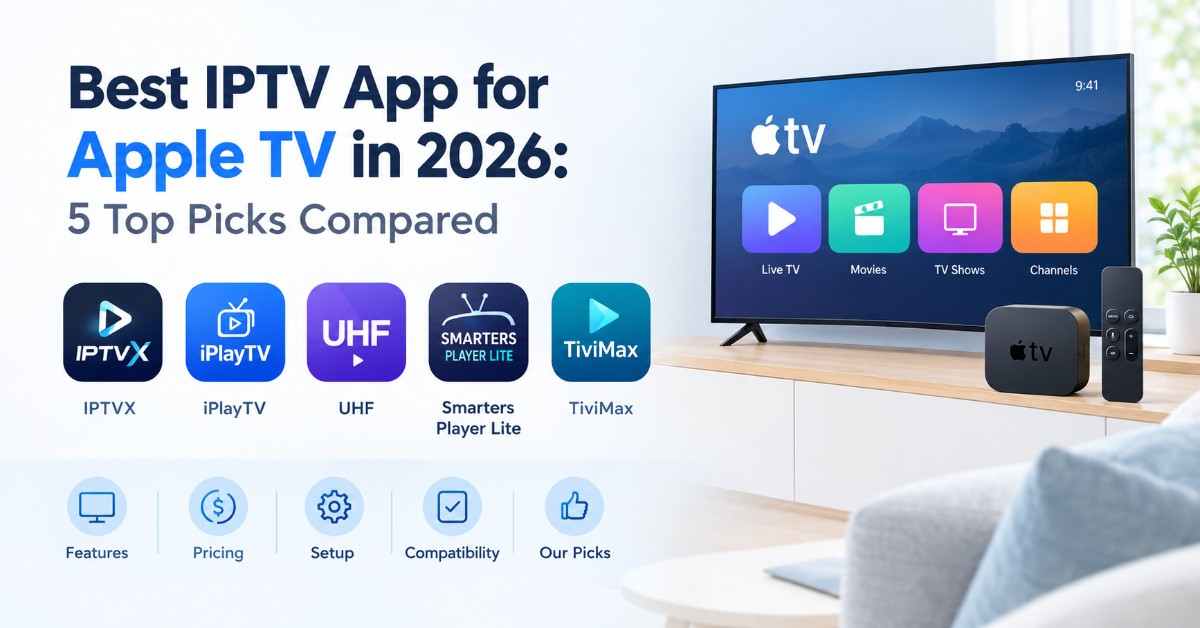
Choosing the best IPTV app for Apple TV depends on your playlist format, budget, and preferred features. Some apps focus on simple playback, while others offer TV guides, media-server support, and advanced playlist controls. This guide compares five IPTV apps for Apple TV to help you find a suitable player, understand the costs, and check compatibility before installing.
Quick Answer:
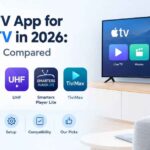
Finding the right IPTV app for Apple TV comes down to your preferred features, playlist compatibility, and budget. IPTVX offers extensive playlist and media features, iPlayTV focuses on dedicated Apple TV playback, UHF supports multiple media sources, Smarters Player Lite handles compatible playlists, and TiviMax supports M3U, Xtream Codes, and portal connections. Check current pricing and compatibility before choosing.
5 Best IPTV Apps for Apple TV in 2026
The following five apps offer different approaches to IPTV playback. Their rankings are editorial recommendations, not a guarantee that one app will work best with every provider.
1. IPTVX
Best for: Users who want a polished interface with extensive playlist and media features.
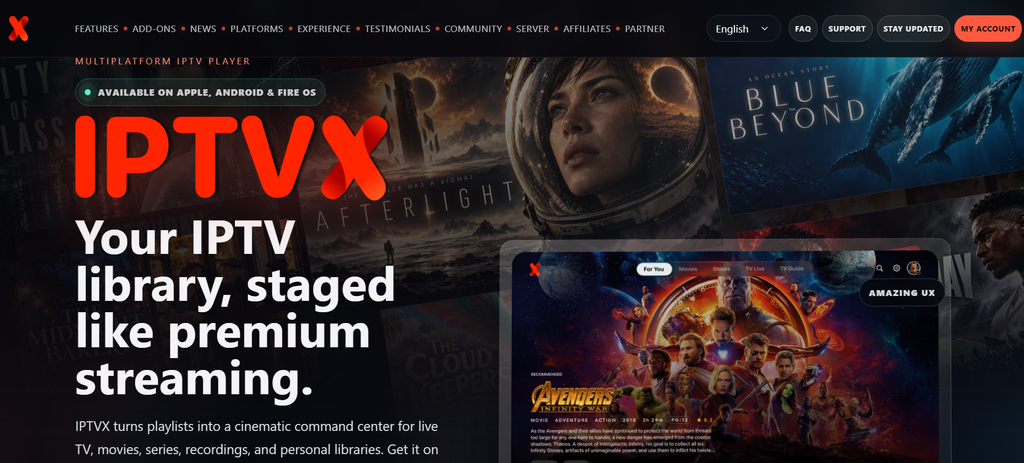
IPTVX is a media player available for Apple TV and other Apple devices. Its App Store listing describes support for M3U, M3U8, Xtream API, Plex, and SMB sources. It also lists features such as favorites, search, a TV guide, multiple playlists, and parental controls.
The app may suit viewers who want to organize live television and on-demand media in one interface. Before choosing it, check which features are available in the current Apple TV version and whether any require an in-app purchase. IPTVX states that it does not provide content itself.
Pros
- Supports several listed playlist and media-source formats.
- Offers TV guide, search, and favorites features.
- Includes multiple playlist management options.
Cons
- Some features may require in-app purchases.
- The number of options may feel complex to new users.
- You must provide a compatible content source.
2. iPlayTV
Best for: Users who prefer a straightforward Apple TV IPTV player.
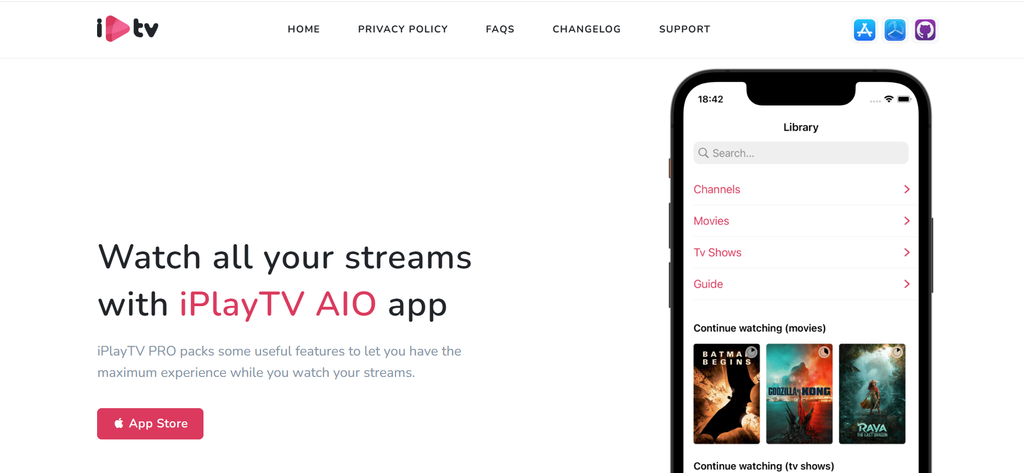
iPlayTV is designed for Apple TV and focuses on organizing compatible playlists in a television-friendly interface. Its listing describes support for multiple playlists, channel search, favorites, electronic program guide data, and several playlist input methods.
The app may be worth considering if you want a dedicated player without needing a broad media-management setup. Its listing also mentions Xtream Codes support and EPG features. Confirm current compatibility with your playlist before purchasing, as support can depend on the source and its configuration.
Pros
- Designed specifically for Apple TV.
- Supports multiple playlists and channel favorites.
- Includes EPG features and Xtream Codes support.
Cons
- Requires your own compatible playlist.
- Listed pricing may be a barrier for users seeking a free app.
- Some playlists or stream formats may not work as expected.
3. UHF
Best for: Users who want a modern interface and support for different media sources.
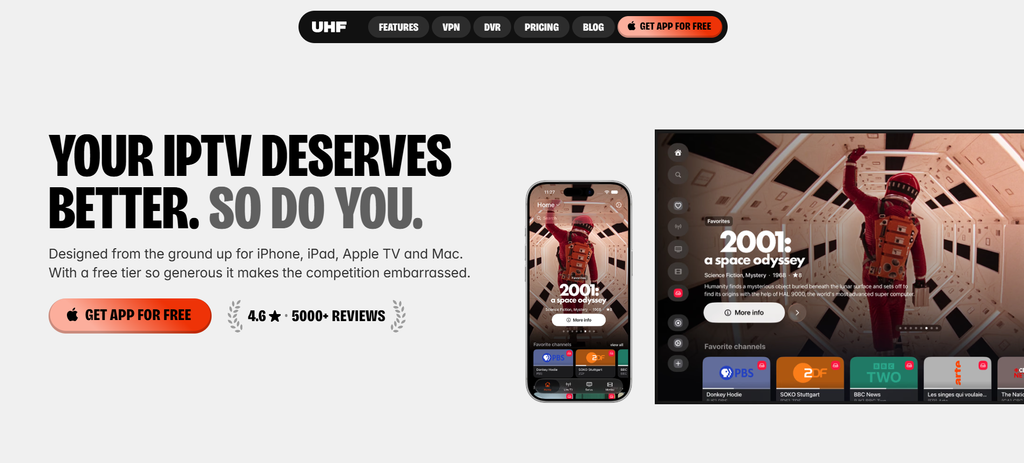
UHF is an IPTV and media player that supports Apple TV. Its App Store listing describes compatibility with M3U8, Xtream, Plex, Jellyfin, and Emby sources. These options can make it useful for people who manage content through more than one compatible source.
UHF also offers features for browsing channels and media libraries. The app has free functionality and optional in-app purchases, but the available features and requirements may change. Review its current listing and check whether your Apple TV runs a supported version of tvOS.
Pros
- Supports multiple listed media-source types.
- Provides a modern interface for browsing content.
- Offers free core features with optional purchases, according to its listing.
Cons
- Some additional features may require payment.
- Users may need time to configure different sources.
- Playback still depends on the quality and compatibility of the source.
4. IPTV Smarters Player (Smarters Player Lite)
Best for: Users who want to play compatible playlists through a familiar media-player interface.

Smarters Player Lite is listed for Apple TV as well as other Apple devices. Its App Store description includes support for M3U and JSON playlists, along with media playback features. The available options depend on the current version and the platform you use.
This player may be suitable if your authorized content source provides a compatible playlist. Before entering any login details, check that the app supports the exact format supplied by your provider. Smarters Player Lite is a player rather than a guarantee of included channels, so you should confirm the source and any applicable costs separately.
Pros
- Supports listed playlist formats, including M3U.
- Offers a familiar interface for media playback.
- Available for Apple TV according to its listing.
Cons
- Does not automatically include a television service.
- Compatibility depends on the playlist and app version.
- Some features or purchases may differ by platform.
5. TiviMax Player
Best for: Users who need portal, playlist, and TV guide options in one player.
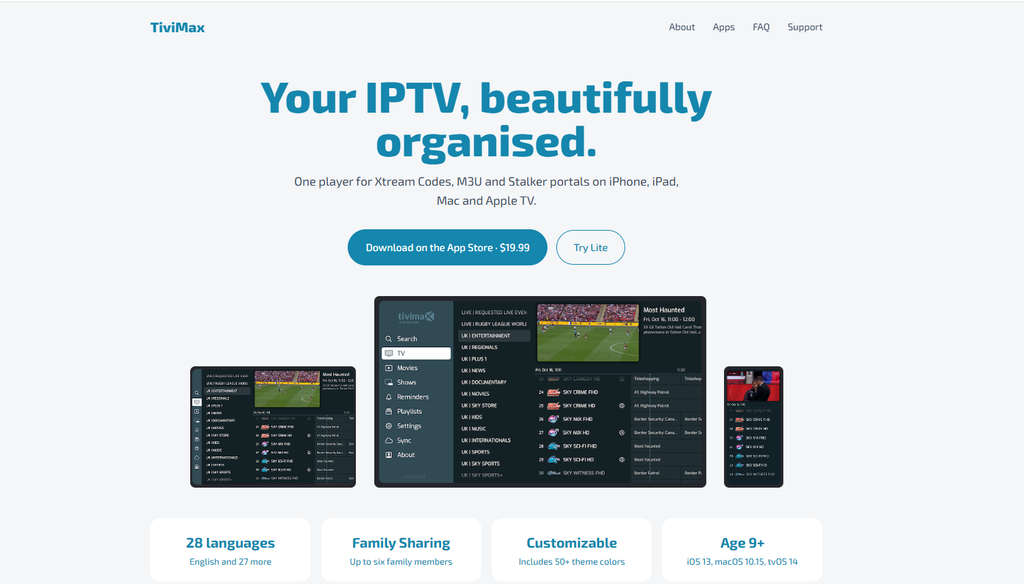
TiviMax Player supports Apple TV and lists several connection methods, including M3U playlists, Xtream Codes, and Stalker portals. Its features include service management, channel organization, an electronic program guide, reminders, video-on-demand playback, and catch-up features where the source supports them.
This option may suit users whose content provider requires a compatible portal or login method. TiviMax is not the same as TiviMate, and the two names should not be confused. Check the exact app listing, price, supported tvOS version, and compatibility before buying.
Pros
- Supports several listed connection methods.
- Offers TV guide and channel organization features.
- Includes catch-up options for compatible sources.
Cons
- The premium version may require an upfront payment.
- Setup can be more involved for beginners.
- You need a compatible provider or playlist to play content.
Also Read : IPTV Box
What Is an IPTV App for Apple TV?
An IPTV app is a media player that organizes and plays television streams or other media from compatible sources. On Apple TV, these apps can help users browse channels, manage playlists, and view program information through the television screen.
Some IPTV players support M3U playlists, while others also accept Xtream Codes logins or portal-based services. The formats available depend on the individual app. Before installing a player, check which login details or playlist format your content provider supplies.
How Does an IPTV Player Work?
An IPTV player connects to a compatible playlist or media source that you provide. Depending on the app and source, it may display live channels, movies, series, and an electronic program guide (EPG).
The player itself does not necessarily provide any channels. You need a compatible source containing content you are authorized to watch. A player cannot guarantee that a playlist will work correctly if the source is unavailable, incorrectly configured, or incompatible.
IPTV App vs IPTV Service
An IPTV app is the software used to organize and play content. An IPTV service or provider supplies the streams or playlist that the app uses.
For example, you might install a player from the Apple TV App Store and then enter an authorized provider’s playlist details. The app and provider can have separate fees, terms, and support channels. Paying for a player does not automatically pay for television content.
How We Chose the Best IPTV Apps for Apple TV
Choosing an IPTV player involves more than looking at its name or popularity. Compatibility, usability, playlist support, and cost can make a significant difference to the viewing experience.
This comparison considers publicly listed features and Apple TV compatibility. The recommendations are based on the listed functions rather than a claim that every app has undergone identical hands-on testing.
Apple TV and tvOS Compatibility
The first step is confirming that an app supports your Apple TV model and its installed tvOS version. An app available for iPhone is not automatically available for Apple TV.
Check the Apple TV section of the app’s official App Store listing before downloading it. Availability can also vary by country or region.
Features and Playlist Support
Playlist compatibility is important because different providers may supply different formats. Check for the features you actually need, such as M3U support, Xtream Codes login, portal compatibility, favorites, and EPG information.
Do not assume that every app supports every format. Confirm the exact requirements in the current app listing.
Ease of Use and Remote Control Support
Apple TV is designed for television viewing, so menus should be easy to navigate with the Siri Remote. A clear channel list, readable program guide, and simple playback controls can make daily use more convenient.
Pricing and Value for Money
Some players are free to download but offer in-app purchases. Others require an upfront payment or a subscription. Compare the total cost with the features you plan to use.
Also consider whether you need to pay separately for a content service. The lowest app price may not be the lowest overall cost.
Which IPTV App Offers the Most Features?
IPTVX and UHF both list support for multiple sources and several organization features. IPTVX may appeal to users who want features such as search, favorites, and parental controls, while UHF may suit users who also manage compatible media-server libraries.
Neither option is automatically the best for everyone. Your playlist format and required features should guide the final decision.
Which App Is Best for Beginners?
iPlayTV may appeal to users who want a dedicated Apple TV player with a straightforward interface. Smarters Player Lite may also be worth considering if your provider supplies a supported playlist format.
Beginners should focus on easy setup, clear instructions, and compatibility before paying for advanced features.
Which App Works Best With Your Playlist?
Before choosing an IPTV app, check the connection method provided by your content source. Some apps accept playlist URLs, while others support Xtream Codes logins or portal-based connections.
Match the app’s listed requirements with your provider’s instructions. If you are unsure which format you need, ask the provider before purchasing an app. Compatibility can vary by app version and source configuration.
Free vs Paid IPTV Apps for Apple TV
Free Features
A free download can be a good way to start, but it does not always mean that every feature is free. Some apps provide basic playback and charge for additional options.
Read the listing carefully and check whether a free tier supports your playlist format. Also remember that a free player does not mean the content source itself is free.
Paid Apps and Premium Features
Paid apps may offer additional organization tools, guide features, or other playback options. However, paying for an app does not guarantee that every stream will work or that a provider’s content is included.
Before purchasing, confirm the app’s compatibility with your source and check the developer’s purchase and refund terms.
One-Time Payment vs In-App Purchases
An upfront price may be easier to budget for than a recurring subscription, but the payment model alone does not determine value. A free app with optional purchases may provide everything you need, while a paid app may suit users who prefer its interface or connection options.
Check the final price shown in your local App Store. Do not rely on old screenshots or prices from another country.
How to Compare IPTV App Pricing
IPTV app pricing varies by developer, platform, and feature set. Some apps offer free features, while others charge for downloads, premium tools, or recurring subscriptions.
Before paying, compare the features included in the price and check for in-app purchases. Confirm the current price in your local App Store, and remember that your content provider may charge separately.
How to Choose the Best IPTV App for Apple TV
Before installing an app, check the device, playlist, and price requirements. A few minutes of research can help you avoid paying for an incompatible player.
Check Your Apple TV Model
Apple TV 4K and Apple TV HD support downloading compatible apps from the App Store. Apple TV models that do not have an App Store cannot install new apps in the same way. Check your model and tvOS version before choosing a player.
You can follow Apple’s official guide to download apps on Apple TV.
Check Playlist and Login Compatibility
Ask your provider which format it supplies. It may provide an M3U playlist URL, Xtream Codes details, or a portal login. Look for that exact format in the app’s current feature list.
Do not share login details with untrusted websites or people offering to configure your account. Use the app’s documented setup process.
Compare Features Before Paying
Make a short list of the features you actually need. These might include favorites, an EPG, multiple playlists, subtitles, catch-up playback, or media-server support.
Then compare the apps against that list. A simpler player may be better if you only need basic playback, while a feature-rich option may suit more complex setups.
Review Privacy and App Updates
Read the app’s privacy information and check who develops it. Keep the app and Apple TV software updated, and avoid entering credentials into unofficial setup pages.
A well-maintained app is preferable to one that no longer receives updates, but updates alone cannot guarantee compatibility with every playlist.
How to Set Up an IPTV App on Apple TV
Setting up an IPTV player usually involves installing the app, adding a compatible source, and checking that the playlist loads correctly. The exact menus vary between apps, so use the developer’s instructions when they differ from these general steps.
Step-by-Step Installation Guide
Step 1: Open the App Store.
Turn on your Apple TV and open the App Store from the Home Screen.
Step 2: Search for the app.
Enter the name of your preferred player, such as IPTVX, UHF, or iPlayTV. Confirm that the listing supports your Apple TV model.
Step 3: Install the app.
Select Get or the displayed price. If the app requires payment, review the amount and purchase terms before confirming.
Step 4: Open the player.
Launch the app and look for an option to add a playlist, service, or media source.
Step 5: Enter your compatible source details.
Use the playlist URL, login details, or portal information supplied by your authorized provider. Follow the app’s instructions and check the details before saving them.
Step 6: Load the playlist.
Wait for the app to import the available channels and program information. Large playlists may take longer to load.
Step 7: Test playback.
Open a channel or media item that you are authorized to watch. If it does not play, check the source details and compatibility before changing other settings.
How to Add an M3U Playlist or Provider Login
Open the app’s playlist or service section. Choose the appropriate input method, then enter the details provided by your source.
If you use an M3U URL, make sure you copy the complete address. If the app requires a username, password, and server address, enter each value in the correct field.
Do not post your playlist URL or login details publicly. Some playlist links contain private credentials that could allow another person to use your account.
How to Configure the Electronic Program Guide
An electronic program guide shows information about scheduled programs when compatible guide data is available. Some apps can import guide information from a playlist or a separate EPG URL.
If the guide is empty, confirm that the source includes program data. Check the app’s guide settings and time-zone options. A player cannot display accurate program details if the source does not supply suitable data.
Tips for Smooth IPTV Playback
- Use a stable internet connection.
- Close apps you are not using if playback performance is poor.
- Check whether the stream works on another supported device.
- Keep the player and tvOS updated.
- Confirm that the content provider is operating normally.
- Avoid changing advanced playback settings unless you understand their effect.
A faster internet connection cannot fix every problem. The stream source, server performance, device compatibility, and playlist configuration can all affect playback.
Common IPTV Problems on Apple TV and How to Fix Them
IPTV Buffering or Freezing
Buffering can result from an unstable connection, a slow content source, or an incompatible stream. First, test another authorized channel and restart the app. If several channels fail, restart your router and check the connection.
If the problem affects only one stream, contact the content provider. Changing players may not solve a source-side issue.
Playlist or Login Errors
A login error may mean that a URL or credential was entered incorrectly, the account has expired, or the source is temporarily unavailable.
Carefully recheck the information supplied by your provider. Avoid repeatedly sharing your credentials with third parties. If the details are correct, contact the provider to confirm that the account and connection method are still supported.
Missing Channels or EPG Data
Missing channels may indicate that the playlist did not load completely or that the source has changed. Try refreshing the playlist using the app’s supported method.
If the channel guide is blank, check the EPG settings and source data. Some providers do not supply program information for every channel.
App Crashes or Playback Problems
Check for app and tvOS updates. Restart the Apple TV and reopen the player. If only one media source causes a crash, test a different compatible source to identify where the problem occurs.
If the issue continues, contact the app developer using the support details in its official listing. Include the app version and a clear description of the problem, but do not send passwords or private playlist links.
Alternatives to IPTV Apps on Apple TV
A dedicated IPTV player is not the only way to watch television on Apple TV. Depending on your location and viewing needs, official streaming services and broadcaster apps may be easier to set up.
Official Live TV and Broadcaster Apps
Some broadcasters provide official apps for live channels, news, and catch-up programs. These apps may offer a more direct experience because they manage their own content and playback.
Check the official service website for regional availability, supported devices, and any subscription requirements. A service that works in one country may not be available in another.
Free Streaming Apps
Free, ad-supported streaming apps can provide movies, shows, news, or other programming without requiring a paid IPTV provider. The available content depends on the app and your region.
Choose apps from trusted sources and read their terms. Free content does not automatically mean every channel or program is available without restrictions.
AirPlay From a Compatible Device
AirPlay can let you send supported media from a compatible Apple device to an AirPlay-enabled receiver. However, playback depends on the source app and its AirPlay support.
AirPlay is not a replacement for every IPTV player, and some apps may restrict casting. Check compatibility before relying on it for regular viewing.
Is IPTV on Apple TV Legal and Safe?
IPTV is a method of delivering television over internet networks. Whether a particular stream is lawful depends on the content rights, provider authorization, and applicable laws in your location.
Using an IPTV player does not automatically make every playlist legal. Choose content sources that have permission to distribute the programs they offer.
Check Whether the Provider Has Content Rights
Before paying for an IPTV service, look for clear company details, terms of service, contact information, and information about its content rights. Be cautious if a provider makes broad claims but offers no credible explanation of its authorization.
An app listing alone does not verify that a third-party playlist is licensed. Confirm the source independently.
Protect Your Login Details and Personal Information
Use strong, unique passwords where supported. Avoid sending credentials through public forums or sharing playlist URLs that contain account information.
Download apps from the official App Store where available. Review the app’s privacy details and avoid unknown profiles or software that ask for unnecessary permissions.
Download Apps From Trusted Sources
Apple provides an App Store for compatible Apple TV 4K and Apple TV HD models. Check the official listing for compatibility, pricing, and developer information before installing a player.
For further information, see Apple’s App Store and media services terms. These terms explain the role of app providers and the conditions governing apps and other content.
Final Verdict: Which IPTV App Should You Choose?
The best IPTV app for Apple TV is one that supports your playlist and fits your budget. IPTVX suits users who want more features, iPlayTV offers a dedicated Apple TV experience, UHF supports multiple media sources, Smarters Player Lite handles compatible playlists, and TiviMax provides portal and TV guide options.
Before choosing, check the app’s current pricing, tvOS compatibility, and supported formats. Remember that an IPTV player does not automatically include channels. Use a content source you are authorized to watch.
Frequently Asked Questions
What is the best IPTV app for Apple TV in 2026?
There is no single best app for everyone. IPTVX, iPlayTV, UHF, Smarters Player Lite, and TiviMax all suit different needs. Pick the one that supports your playlist format.
Do IPTV apps come with channels?
No. An IPTV app is only a player. You need a compatible playlist or login from a source you are authorized to use.
Is there a free IPTV app for Apple TV?
Yes, some apps are free to download. UHF and Smarters Player Lite both list free access with optional in-app purchases. Check the current listing for what is included.
Which IPTV app is best for beginners?
iPlayTV may suit beginners who prefer a dedicated Apple TV player. Smarters Player Lite is another option if your content provider supplies a compatible playlist. Compare the setup process, current price, and supported formats before choosing.
Can I use an M3U playlist on Apple TV?
Yes, you can use an M3U playlist on Apple TV if your chosen IPTV app supports that format. Check the app’s current App Store listing and setup instructions before purchasing. Also confirm that your playlist URL is valid and comes from a content source you are authorized to use.
Does Apple TV support Xtream Codes?
Yes, Apple TV apps can support Xtream Codes logins if the app developer includes this feature. Support varies by app and version, so check the current App Store listing and setup instructions before purchasing. You will also need compatible login details from your content provider.
What is the difference between an IPTV app and an IPTV service?
The app plays the content. The service supplies the streams or playlist. They usually have separate fees and support teams.
Is IPTV legal on Apple TV?
IPTV itself is just a delivery method. Legality depends on whether your provider has the rights to the content in your country.
Is TiviMax the same as TiviMate?
No, they are two different apps. Always check the exact name and developer in the App Store before you buy.
Which app works with Plex, Jellyfin, or Emby?
UHF lists support for all three. IPTVX also lists Plex and SMB sources.
Do I need an Apple TV 4K to use IPTV apps?
No. Apple TV 4K and Apple TV HD both have an App Store. Older models without one cannot install new apps.
Why does my IPTV app keep buffering?
It can come from a weak connection or a slow source. Test another channel first. If only one stream fails, contact your provider.
Why is my TV guide empty?
Your source may not include program data. Check the EPG settings and time zone in the app. Some providers skip guide data for certain channels.
Can I use AirPlay instead of an IPTV app?
Sometimes. It depends on whether the source app allows AirPlay. Some apps block casting, so test it before relying on it.
Are IPTV apps safe to download?
Stick to the official App Store listing. Read the privacy details, keep the app updated, and never share your login or playlist link in public.