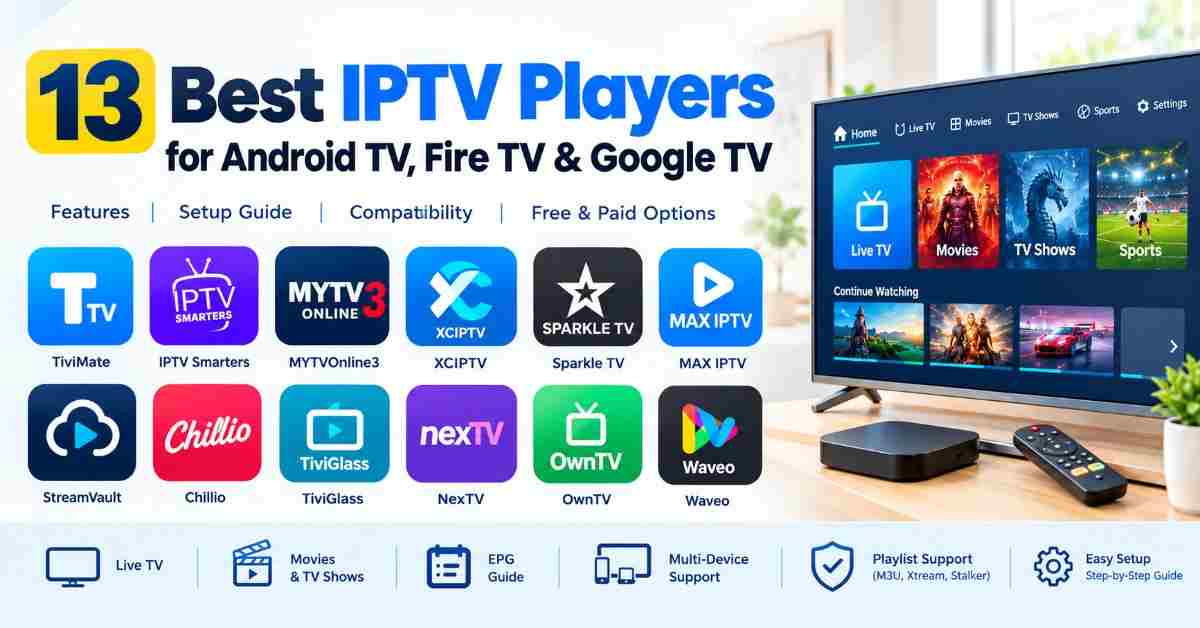
Selection of the appropriate IPTV player will allow one to facilitate the organization of the TV channels, movies, TV series, and electronic programming guide (EPG) more easily. But not all IPTV players have equal capabilities in terms of device compatibility and functionality.
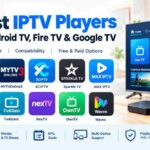
In this article, we will be comparing 13 IPTV players such as TiviMate, IPTV Smarters, MYTVOnline3, XCIPTV, Sparkle TV, and others. You will be provided with the key features of each of these apps, supported devices, playlists, and installation instructions.
Important note: Usually, the IPTV player is the media player, not the TV subscription. In order to use it you need to have an IPTV service or playlist.
IPTV Player Comparison Table
Use this table for a quick overview of the 13 IPTV players. Check each app’s official listing before installing it, especially if you use Fire TV, Apple TV, a Smart TV, or a computer.
| IPTV Player | Main Device Focus | Key Features | Pricing |
| TiviMate | Android TV, Google TV; compatible Fire TV devices | EPG, playlists, recording options | Free and Premium |
| IPTV Smarters | Compatible Android, iOS, TV devices | Live TV, VOD, playlist management | Depends on version |
| MYTVOnline3 | Supported Formuler devices | Time Shift, recording, universal search | Device and service dependent |
| XCIPTV | Compatible Android-based devices | EPG, favorites, external players | Depends on version |
| StreamVault | Verify the exact app listing | Playlist playback, multi-view on supported versions | Verify listing |
| Chillio | Verify supported Apple and Android platforms | Profiles, multi-view, playlist management | Verify listing |
| TiviGlass | Compatible Android TV and Google TV devices | Playlist options, catch-up, parental controls | Free and paid options |
| Sparkle TV | Android TV and compatible streaming devices | EPG, DVR, Time Shift | Free and Plus |
| iMPlayer | Verify current platform availability | Playlist management, playback controls | Free and premium options |
| Waveo | Verify current device compatibility | Playlist management, profiles, cloud sync | Free and paid options |
| NexTV | Compatible Android-based devices | EPG, watchlist, Live TV and VOD | Free and premium options |
| OwnTV | Compatible Android-based devices | Profiles, EPG, playlist management | Verify listing |
| MAX IPTV Player | Multiple supported TV, mobile, and desktop platforms | M3U, Xtream, Stalker, cloud sync | Free trial and paid licenses |
Pricing and platform availability can change. The table is a starting point, not a guarantee that every listed feature works on every device.
1. TiviMate
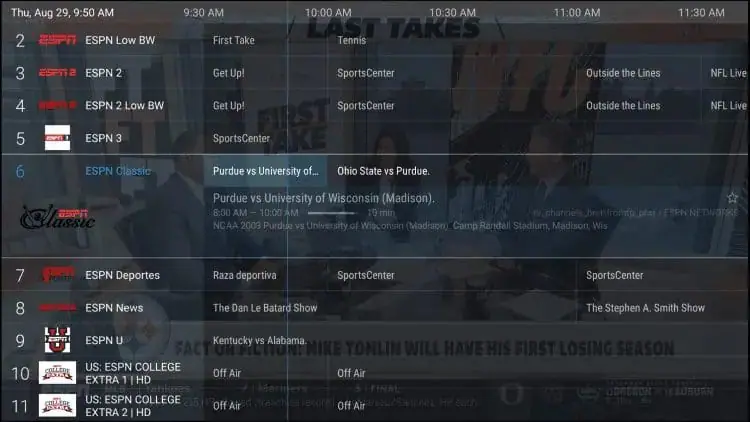
Suitable For: Those looking to install an advanced TV guide application on their television device.
TiviMate is a commonly used IPTV app that is mainly intended for use on Android TV and remote control operations. The app has functionalities that help organize playlists and live TV browsing through a customized interface.
Features
- Customizable Electronic Program Guide (EPG)
- Multi-Playlist support
- Channel grouping & manual sorting
- Subtitles & compatible third-party players
- Recording & reminders where available
- Favorites & parental control
- Picture in picture & other premium features, where available
TiviMate has both Free and Premium versions. The premium version allows for more customization and management of playbacks. However, TiviMate does not have IPTV subscription channels.
How to install and set up TiviMate
Make sure that your device meets the requirements in the official listing of TiviMate in the Google Play Store.
- Install TiviMate via any available reliable way of installation.
- Launch TiviMate app and select the option to add a playlist.
- Choose one of the supported connection methods.
- Enter the playlist link or login data provided by your IPTV provider.
- Let TiviMate load the playlist and EPG data.
- Sort channels and configure EPG settings according to your needs.
In case TiviMate cannot be found in your device’s app store, make sure to check the information of the developer before trying any other method of installation. Avoid APK files not verified by any source.
Conclusion: TiviMate is worthy to consider in case of the importance of a structured TV guide and playlist control.
2. IPTV Smarters
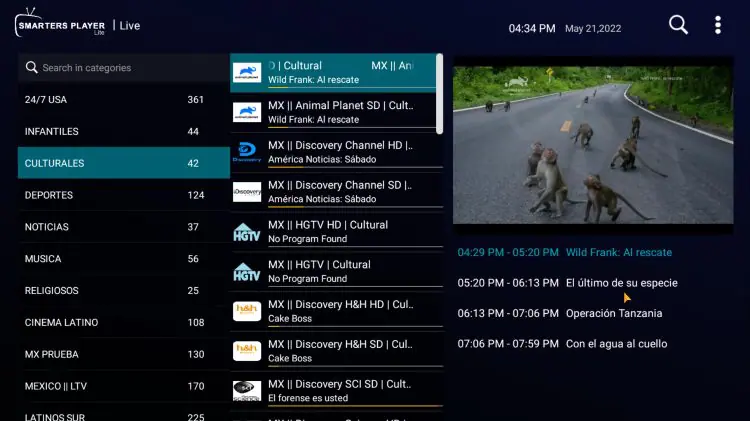
Recommended for: Individuals looking for an easy-to-use interface for IPTV playlists compatible with the app.
IPTV Smarters is an IPTV player that can be utilized in organizing live TV, videos, and movies from any compatible IPTV service provider.
Features
- Live TV and Video on Demand (VOD)
- Management of playlists and accounts
- Electronic Program Guide (EPG) where available
- Favorites and Parental Controls on supported versions
- Use of external video players on supported versions
- Multi-Screen or Record options where available
The above features differ among versions and operating systems. It is recommended to make sure that you have installed the required application and not similar apps with similar names.
Installation Process of IPTV Smarters
Locate the right IPTV Smarters app in either your mobile phone’s app store or from the verified website of the developer.
- Install and launch the application.
- Select Login or Playlist.
- Type in the credentials given by the IPTV Service Provider.
- Wait until the playlist and categories of available media load.
- Navigate Live TV, Movies, and TV Shows.
Our take: IPTV Smarters may suit users who prefer a simple way to access and organize their existing IPTV service.
3. MYTVOnline3
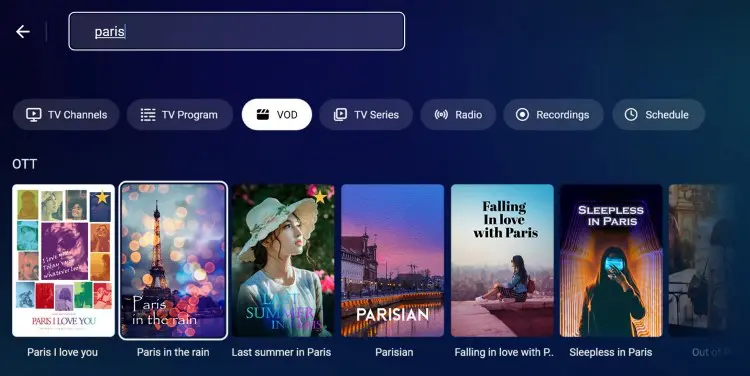
Best for: Owners of compatible Formuler streaming devices.
MYTVOnline3 is designed for supported Formuler devices and offers a television-focused interface for browsing live channels and on-demand content. It is not a universal IPTV app for every Android TV device.
Key Features
- Live TV, movies, and TV show categories
- Time Shift for supported live streams
- Recording and recurring reminders where supported
- Picture-in-Picture on compatible setups
- Universal search across supported content
- Custom and pinned channel groups
- Backup and restore options, where available
- In-app notifications
The availability of recording and Time Shift can depend on the Formuler device, storage, playlist, and IPTV service.
How to Get Started
- Confirm that your Formuler device supports MYTVOnline3.
- Open the device’s app interface and launch MYTVOnline3.
- Add a compatible IPTV source using the available connection method.
- Enter the details supplied by your service provider.
- Allow channels and programme information to load.
- Configure your channel groups, guide, and supported playback options.
Our take: MYTVOnline3 is a practical option for users already within the compatible Formuler ecosystem. Check device compatibility before choosing it.
4. XCIPTV
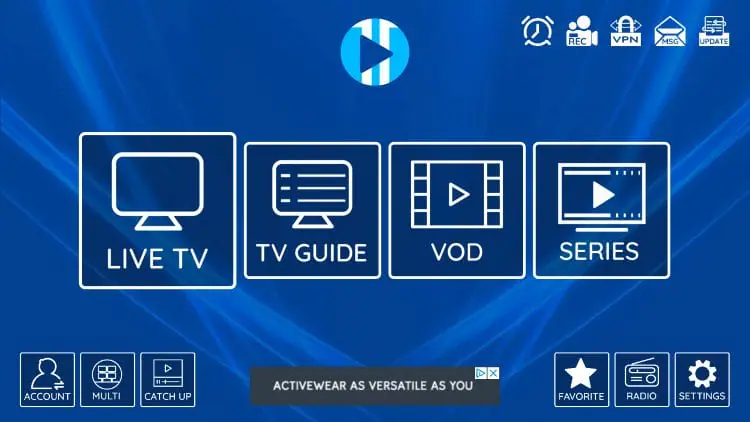
Best for: Users seeking a categorized IPTV interface on a compatible Android-based device.
XCIPTV organizes supported IPTV content into sections such as live television, movies, and TV shows. Depending on the app version, it may also offer playlist tools and additional playback controls.
Key Features
- Live TV and VOD categories
- Electronic Program Guide, where supported
- Favorites and search tools
- Playlist management
- External video player compatibility on supported versions
- Parental controls and other account options, where available
Do not assume that every XCIPTV-branded app has identical features. Verify the developer and current listing before installation.
How to Install and Set Up XCIPTV
- Search for the intended XCIPTV app in a trusted app store or verified source.
- Install and open the application.
- Choose the login method offered by your version.
- Enter your IPTV provider’s credentials or playlist details.
- Wait for the available content to load.
- Browse the supported categories and configure playback settings.
If you use an external player, check whether it is compatible with your device and the stream format.
Our take: XCIPTV is worth evaluating if you want a categorized IPTV interface and your provider supports its login method.
5. StreamVault
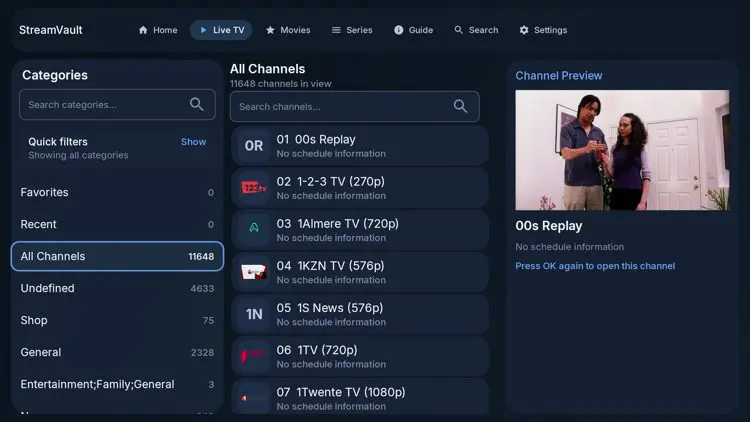
Best for: Users looking for playlist playback and additional viewing controls, subject to the exact app version.
StreamVault is a name that can refer to different applications or services. The features and device support in this section should be checked against the exact product listing before publication or installation.
Features to Check
- Live TV and VOD playback
- Playlist import options
- Favorites and viewing progress
- Multi-view support, if available
- Playback speed controls
- Language and casting options, where supported
How to Install and Set Up StreamVault
- Identify the exact StreamVault app and its developer.
- Confirm that the app supports your television or streaming device.
- Install it from a trusted source.
- Open the app and look for its playlist or account setup option.
- Add your M3U URL or other supported details, if offered by the app.
- Wait for the playlist to load and test playback.
Do not use an APK link simply because a third-party website labels it as official. Verify the source and compatibility first.
Our take: Consider StreamVault only after confirming the exact app, supported platforms, and playlist features.
6. Chillio
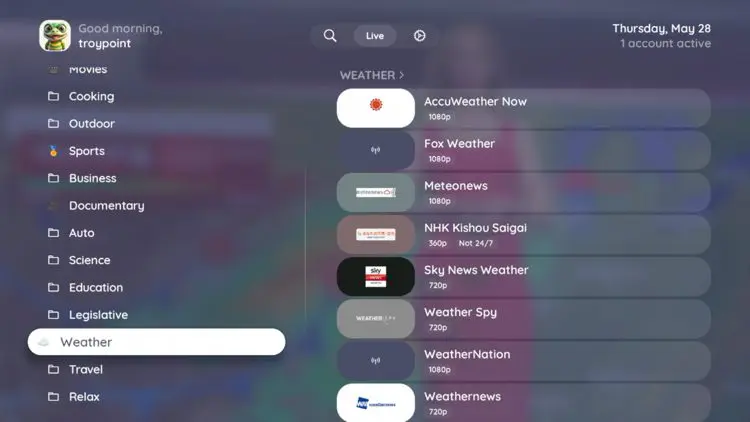
Best for: Users who want to manage IPTV playlists on a supported device.
Chillio has been described as a multi-device IPTV player, but supported platforms and available features should be confirmed using its current official listing. Check the exact app name and developer before downloading.
Features to Check
- M3U or Xtream Codes support, if offered
- Live TV and on-demand content organization
- User profiles
- Multi-view playback, where available
- TV guide and catch-up support, if compatible
- Cross-device availability, where officially supported
How to Install and Set Up Chillio
- Open the official app store on your device.
- Search for the exact Chillio application and verify its developer.
- Install the compatible version.
- Open the app and select its account or playlist setup option.
- Choose an available connection method.
- Enter the details supplied by your IPTV provider.
- Wait for the playlist to load and check which features your device supports.
The installation process may differ between Apple TV, Android TV, mobile devices, and computers. Do not assume that an app available on one platform is available on all others.
Our take: Chillio may be worth considering if its verified platform support and playlist features match your setup.
7. TiviGlass
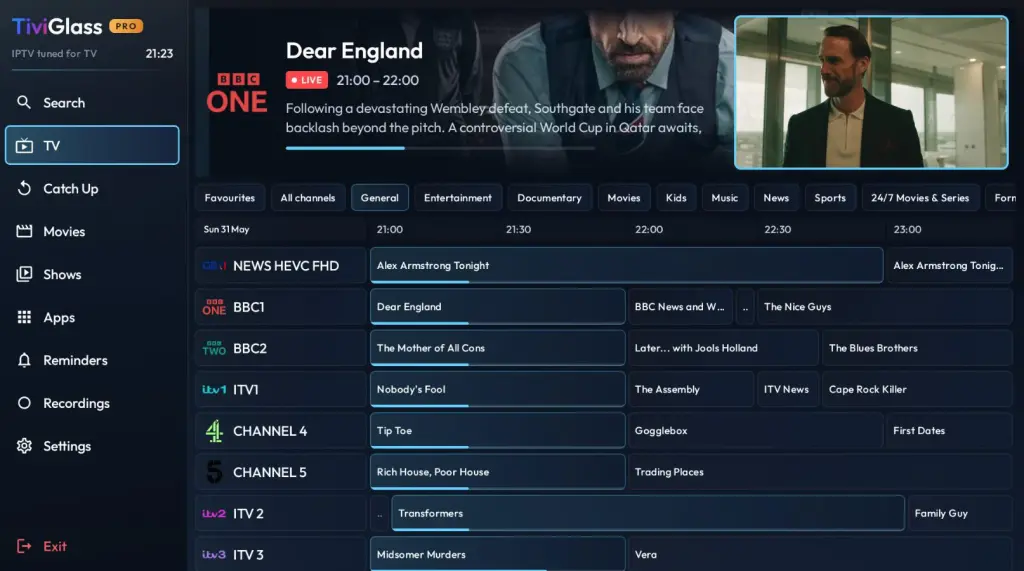
Best for: Users who want playlist management and advanced playback tools on compatible devices.
TiviGlass offers IPTV playlist features for supported platforms. Depending on the version and plan, its tools may include programme search, catch-up viewing, parental controls, and playlist customization.
Key Features
- M3U playlist support, where available
- Xtream Codes or Stalker portal support, if offered
- Multiple playlist management
- Electronic Program Guide and programme search
- Catch-up and recording options, where supported
- Parental controls
- Cloud synchronization or additional paid features, if included in the current plan
How to Install and Set Up TiviGlass
- Check the TiviGlass website for current product and plan information.
- Confirm device compatibility and find the official installation source.
- Install the compatible version and open the app.
- Select the option to add a provider or playlist.
- Choose a supported playlist format.
- Enter the playlist URL or credentials supplied by your provider.
- Wait for the import to finish and review the available channels.
Free and Paid Options
TiviGlass has been presented with free and paid options. Before subscribing, check the current plan details, recording limits, playlist limits, and cloud features on its official website.
Our take: TiviGlass is worth evaluating if its current version supports your device and offers the playlist features you need.
8. Sparkle TV
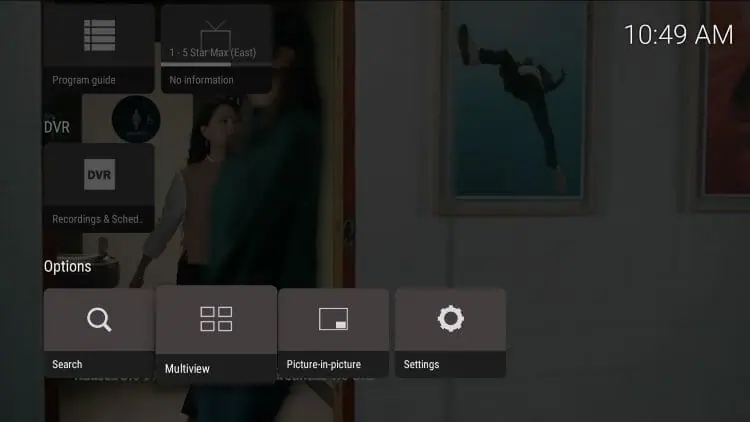
Best for: Users who want a traditional television-style interface and advanced playback options.
Sparkle TV is an IPTV player for compatible Android TV and streaming devices. It offers channel organization and TV guide features, with some advanced tools available through its paid upgrade.
Key Features
- M3U and other supported playlist sources
- Electronic Program Guide
- Channel categories and favorites
- DVR and scheduled recording, where supported
- Time Shift and catch-up, when supported by the source
- Subtitle and language options
- Multi-view and VOD features on compatible versions
Some features depend on the app edition, device hardware, storage, and IPTV service.
How to Install and Set Up Sparkle TV
- Find Sparkle TV in a trusted app store or verify the developer’s official download source.
- Install and open the app.
- Select the option to add a new source.
- Choose a supported playlist format.
- Enter the URL or login information provided by your IPTV service.
- Allow the app to import the playlist and guide data.
- Open Live TV and adjust your preferred channel categories.
Sparkle TV Free vs. Plus
Sparkle TV provides basic features, while Sparkle TV Plus unlocks additional functionality. Check the official app listing for current premium features, prices, and supported devices.
Our take: Sparkle TV is a good candidate to compare with TiviMate if you want EPG and playback controls on a compatible television device.
9. iMPlayer
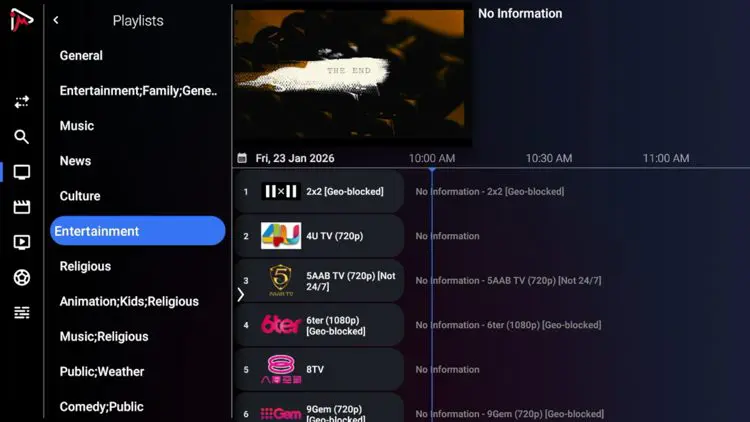
Best for: Users who want playlist customization and playback-management features.
iMPlayer provides tools for managing IPTV playlists and organizing available content. Its exact features and platform support should be confirmed against the current app listing.
Key Features
- Playlist management
- Channel organization and favorites, where available
- Catch-up or Time Shift, if supported
- External player compatibility on supported versions
- Parental controls and channel locking, where available
- Recording and multi-view options on compatible setups
- Backup and restore features, if included in the selected plan
How to Install and Set Up iMPlayer
- Verify the exact iMPlayer application and supported device.
- Install it from an official app store or the developer’s verified source.
- Launch the application.
- Select Add Playlist or the equivalent option.
- Choose a supported connection method, such as M3U or Xtream Codes, if available.
- Enter your provider’s details and allow the playlist to load.
- Test playback and adjust channel or player settings.
Do not assume that the Android and Apple versions have identical availability or features. Check your device’s official store before following platform-specific instructions.
Our take: iMPlayer may suit viewers who value customization, provided the version they choose supports their device and playlist.
10. Waveo
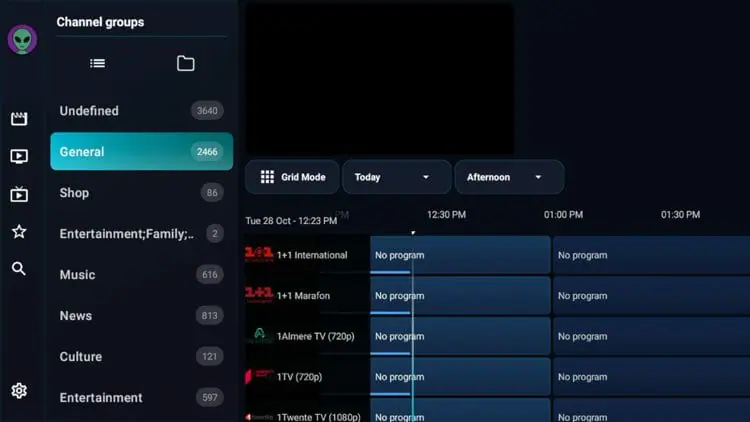
Best for: Users interested in playlist management and personalization, subject to current platform support.
Waveo has been described as offering free and paid options, custom groups, viewing history, and cloud-related features. Verify the exact app listing and current plan details before relying on those features.
Key Features to Check
- Playlist management
- Custom channel groups
- Personalized viewing history
- Profiles and quick actions, if available
- Cloud synchronization, where supported
- Free and paid plans, depending on the current offering
How to Install and Set Up Waveo
- Identify Waveo’s official app listing and confirm device compatibility.
- Install the compatible version.
- Open the app and complete any introductory steps.
- Choose an available playlist or account connection method.
- Enter your M3U URL or other supported credentials.
- Name the playlist or profile if prompted.
- Wait for the import to finish and browse the available content.
If a website advertises a free trial, verify its duration, eligibility, and cancellation terms on the official source before signing up.
Our take: Waveo is worth investigating if its verified features fit your needs, but confirm the platform and subscription details first.
11. NexTV
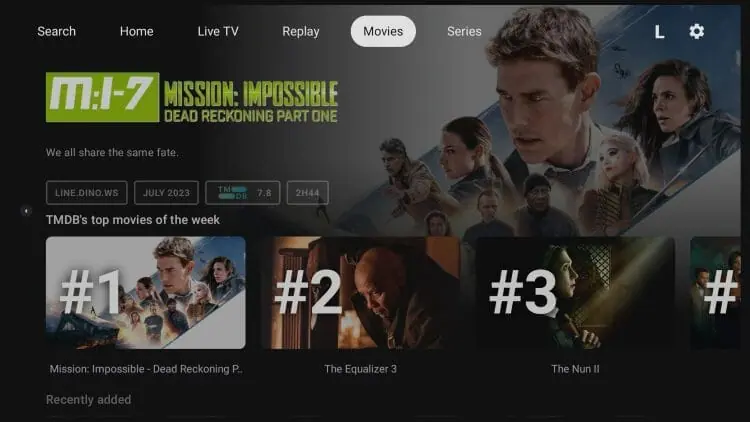
Best for: Users who want a modern layout for supported live TV and VOD playlists.
NexTV is described as an IPTV player focused on organizing live channels, movies, and TV shows. Depending on the exact app version, it may offer a guide, watchlist, and additional content-discovery features.
Key Features
- Live TV and VOD organization
- Electronic Program Guide, where supported
- Watchlist and custom groups, if available
- Xtream Codes support, where offered
- Recommendations or content discovery on supported versions
- Free and premium features, depending on the current plan
How to Install and Set Up NexTV
- Confirm the exact NexTV application and supported platform.
- Install it from a trusted source.
- Open the app and go to its playlist or settings menu.
- Select Add Playlist or the equivalent option.
- Choose a supported connection method.
- Enter your provider’s server URL and credentials, if required.
- Wait for the app to load your playlist.
- Configure available live TV, movie, and TV show categories.
Some apps use the name NexTV, so confirm the developer and official listing before entering login information or purchasing a premium plan.
Our take: NexTV may be useful if you prefer a content-focused interface and the verified version supports your IPTV service.
12. OwnTV
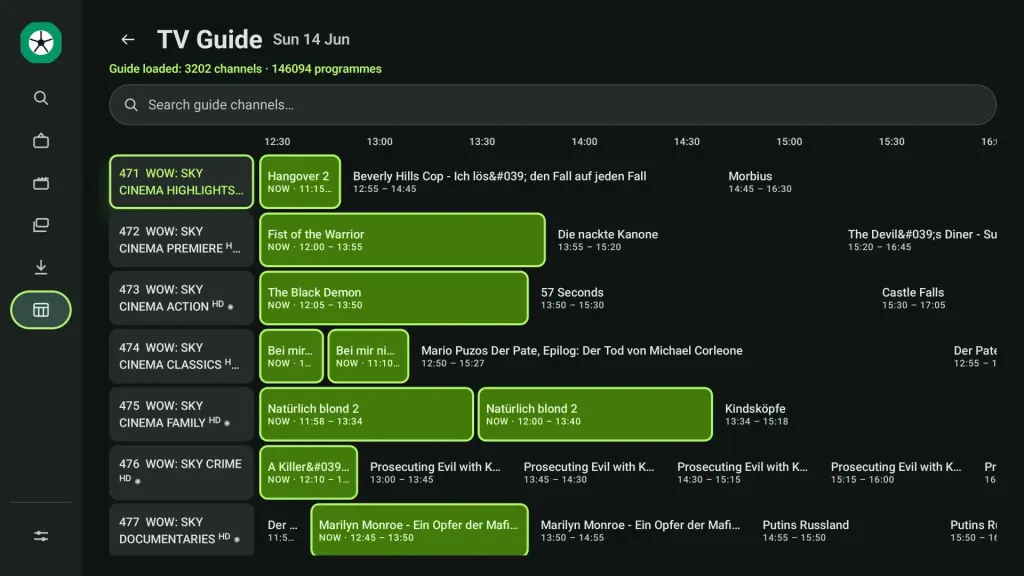
Best for: Users looking for playlist organization and profile controls, once the app listing is verified.
OwnTV has been described as an IPTV player with features such as profiles, an EPG, and playlist management. However, its current developer, supported platforms, and feature set should be verified before publishing specific compatibility claims.
Features to Check
- M3U playlist import
- Xtream Codes or other connection methods, if supported
- Live TV, movies, and TV shows
- EPG and favorites
- Multiple profiles and parental controls, where available
- Downloads or mini-player features, if officially offered
How to Install and Set Up OwnTV
- Locate the exact OwnTV app in an official app store or verified developer source.
- Confirm the operating system and device requirements.
- Install and launch the application.
- Create a profile if the app requires one.
- Select the option to add a playlist.
- Enter a supported playlist URL or provider credentials.
- Wait for the content and guide information to load.
- Review the available categories and settings.
Do not assume OwnTV supports Fire TV, Android TV, or Google TV merely because an installation guide mentions those devices. Confirm current compatibility first.
Our take: OwnTV should be considered after its official listing and supported features have been checked.
13. MAX IPTV Player
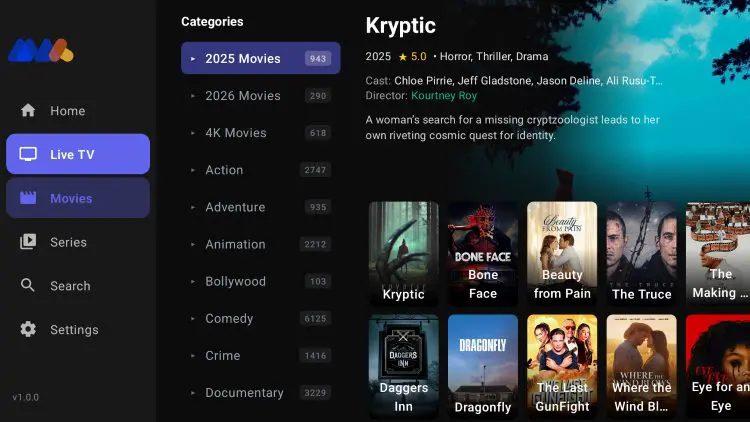
Best for: Users who want to manage their own playlists across multiple supported platforms.
MAX IPTV Player is a media player for users’ own playlists. Its official website lists support for M3U, Xtream, and Stalker playlists and describes compatibility with multiple TV, mobile, desktop, and browser platforms. Availability can still depend on the device and operating system.
Key Features
- M3U, Xtream, and Stalker playlist support
- Electronic Program Guide and programme schedules
- Favorites and custom channel lists
- Parental controls
- Cloud backup and synchronization on supported plans
- Multi-device support
- Subtitles and VOD metadata, where supported
- Interface translation into multiple languages
The official website advertises a seven-day free trial and paid licenses. Check its current terms and device limits before purchasing.
How to Install and Set Up MAX IPTV Player
- Visit the official MAX IPTV website.
- Review the supported platforms and create an account if required.
- Add your own compatible playlist using the available dashboard or app setup method.
- Install MAX IPTV from the appropriate official source for your device.
- Open the app and follow the device activation or sign-in instructions, if prompted.
- Select or synchronize your saved playlist.
- Wait for channels and programme information to load.
- Test playback and configure favorites, subtitles, and parental controls as needed.
Exact steps may differ between the web player, Android TV, Fire TV, Apple TV, and desktop versions. Follow the official guide for your specific platform.
MAX IPTV Pricing
MAX IPTV’s official website lists paid license options with different device limits. Pricing and included features may change, so check the current MAX IPTV pricing and plans before purchasing.
Our take: MAX IPTV is worth comparing if you want a player with broad platform coverage and playlist synchronization. Confirm that your particular device and playlist are supported.
How to Choose the Best IPTV Player
Before downloading an IPTV player, consider the following factors.
1. Device Compatibility
Choose an app that supports your device and operating system. Android TV, Google TV, Fire TV, Apple TV, and Samsung or LG Smart TVs do not all use the same apps.
2. Playlist Support
Check whether the app supports your provider’s connection method, such as an M3U playlist, Xtream Codes credentials, or a Stalker portal. Support differs by application.
3. Electronic Program Guide (EPG)
An EPG displays programme schedules and descriptions. It is useful for browsing live TV, but the guide may depend on the information supplied by your playlist or service.
4. Playback and Recording
Features such as catch-up TV, Time Shift, recording, subtitles, and multi-view may be available only on certain devices or premium plans. Your IPTV provider must also support the relevant functions.
5. Price and Privacy
Compare free features with paid features before purchasing a subscription or license. Download apps from trusted sources, review requested permissions, and check how each app handles playlist credentials.
Best IPTV Player by Use Case
There is no single best IPTV player for every viewer. The right choice depends on your device, playlist, and preferred features.
| Your Priority | Apps to Compare |
| Advanced TV guide on Android TV | TiviMate, Sparkle TV |
| Formuler device integration | MYTVOnline3 |
| Simple categorized interface | IPTV Smarters, XCIPTV |
| Advanced playlist management | TiviGlass, iMPlayer |
| Multiple-device access | MAX IPTV Player, subject to supported platforms |
| Other emerging or less widely documented apps | StreamVault, Chillio, Waveo, NexTV, OwnTV |
These are comparison suggestions, not a claim that every feature has been independently tested. Check each app’s official listing and confirm compatibility with your device before paying.
How to Choose a Safe and Compatible IPTV Player
Use this checklist before installing an IPTV app or purchasing a license.
- Confirm the developer: Check the app’s official website or app-store listing.
- Check device compatibility: Make sure your operating system and device model are supported.
- Verify playlist support: Confirm whether the app accepts your provider’s connection method.
- Review premium features: Check which features are free and which require payment.
- Check privacy and permissions: Avoid providing unnecessary personal information or granting unrelated permissions.
- Use trusted downloads: Avoid suspicious APK websites and installers from unverified sources.
- Check service legality: Use playlists and services that you are authorized to access.
- Test before paying: Use a free version or trial when officially available, and review the terms carefully.
If a playlist fails to load, check the URL, credentials, internet connection, provider status, and app compatibility before assuming the player is faulty.
Final Verdict
The best IPTV player depends on your device and preferred features. TiviMate and Sparkle TV offer TV-focused interfaces, while MYTVOnline3 is designed for compatible Formuler devices. IPTV Smarters, XCIPTV, and MAX IPTV Player are also worth considering based on compatibility.
Before choosing, check the app’s official source, supported devices, features, and pricing. Remember, an IPTV player generally does not provide channels or subscriptions. Keep this guide updated with the latest information and genuine app testing.
Frequently Asked Questions
1. What is an IPTV player?
An IPTV player is an application that plays and organizes internet-delivered television streams using a compatible playlist or service. Depending on the app, it may include an EPG, favorites, subtitles, VOD categories, or recording tools.
2. Do IPTV players provide TV channels?
Usually, no. An IPTV player is generally software for playing content from a separate source. You need a compatible playlist or service that you are authorized to use.
3. Which IPTV player is best for Android TV?
TiviMate and Sparkle TV are two options to compare for Android TV. Consider their guide features, playlist compatibility, pricing, and the specific features supported by your device.
4. Can I use IPTV players on Fire TV Stick?
Some IPTV players support compatible Fire TV devices, but availability varies. Check the official app listing and use a trusted installation source. Do not assume every Android app is compatible with Fire TV.
5. Are free IPTV players available?
Yes. Some IPTV players offer free versions, while others use paid licenses, premium upgrades, or trials. A free player does not necessarily include TV channels or a subscription.
6. What is an M3U playlist?
An M3U playlist is a file or URL that contains references to media streams. Some IPTV players can import M3U playlists, but the format and supported features vary by app.
7. What does EPG mean in IPTV?
EPG stands for Electronic Program Guide. It displays programme schedules and related information when compatible guide data is available from the playlist or service.
8. What is the difference between an IPTV player and an IPTV provider?
An IPTV player is the software used to organize and play compatible streams. An IPTV provider supplies the service or playlist. They are separate, and a player’s premium license normally pays for app features rather than television content.
9. Can one IPTV player work on every device?
No. Some apps are designed for particular ecosystems, such as Android TV or compatible Formuler devices. Others may support several platforms. Always verify the exact app version and device requirements.
10. Why is my IPTV playlist not working?
Possible causes include an incorrect playlist URL, expired or invalid login details, an internet issue, a provider outage, unsupported stream formats, or an app compatibility problem. Check your credentials and provider status, then test the playlist in a compatible player.